> ## Documentation Index
> Fetch the complete documentation index at: https://ngquct-refactor-inspector-field-layout.mintlify.site/llms.txt
> Use this file to discover all available pages before exploring further.
# Data Grid
> Sort, size, hide, chart and copy the rows a table or a query puts in the grid
Most of the grid's controls sit in the status bar beneath it. The view switcher is at the leading edge, the row count in the middle, then the columns, filter and page buttons at the trailing edge.
 ## Sorting
Click a header to cycle through ascending, descending, and off. `Shift`-click a second header to sort by both. Sorting re-runs the query with a new `ORDER BY`, so it orders the whole table rather than the page in front of you.
To sort on open, set **Default row sort** in [Settings > Data](/customization/data-settings) to **Primary key** or **First column**; out of the box the order is the server's. A click on any header overrides it.
Sorting on a `BLOB`, `JSON`, or spatial column the server cannot order on fails the query. Sort on another column, or set **Default row sort** back to the engine's order.
## Filtering
The header menu carries two filters that answer different questions.
| Header menu item | What it filters |
| ----------------------------------------------- | ------------------------------------------------------------------------------------ |
| **Filter Values…**, or the funnel icon on hover | The rows already loaded, without a re-query |
| **Filter with column** | The whole table. It adds a row to the [filter bar](/features/filtering) and opens it |
**Filter Values…** lists every value in the column with its count, NULL and empty among them. Select the values to keep and click **Apply**. Filter several columns and a row has to match all of them; **Clear Value Filter** and **Clear All Value Filters** are on the same menu.
## Sorting
Click a header to cycle through ascending, descending, and off. `Shift`-click a second header to sort by both. Sorting re-runs the query with a new `ORDER BY`, so it orders the whole table rather than the page in front of you.
To sort on open, set **Default row sort** in [Settings > Data](/customization/data-settings) to **Primary key** or **First column**; out of the box the order is the server's. A click on any header overrides it.
Sorting on a `BLOB`, `JSON`, or spatial column the server cannot order on fails the query. Sort on another column, or set **Default row sort** back to the engine's order.
## Filtering
The header menu carries two filters that answer different questions.
| Header menu item | What it filters |
| ----------------------------------------------- | ------------------------------------------------------------------------------------ |
| **Filter Values…**, or the funnel icon on hover | The rows already loaded, without a re-query |
| **Filter with column** | The whole table. It adds a row to the [filter bar](/features/filtering) and opens it |
**Filter Values…** lists every value in the column with its count, NULL and empty among them. Select the values to keep and click **Apply**. Filter several columns and a row has to match all of them; **Clear Value Filter** and **Clear All Value Filters** are on the same menu.

 A value filter lives as long as the result does: switching view mode or tab keeps it, replacing the result clears it. **Fetch All** keeps it and applies it to the rows it loads.
## Columns
Drag a border to resize a column, or double-click it to fit the content; **Size to Fit** and **Size All Columns to Fit** on the header menu do the same. A fitted column stops at half the visible grid width.
Hide columns from the columns button in the status bar or from the header menu. A hidden column is not fetched, so hiding a large one makes the table load faster; the primary key and the sorted column are fetched either way. On a schemaless store the popover lists every field the grid can draw, including ones that turn up only in later documents.
Widths, order, and hidden columns are remembered per table, scoped to the connection, database, and schema; **Reset Columns** in the popover puts them back. Right-click a header and choose **Display As** to read a column's stored values in a different form; [Cell and Row Viewers](/features/json-viewer) lists the formats.
### Jump to a column
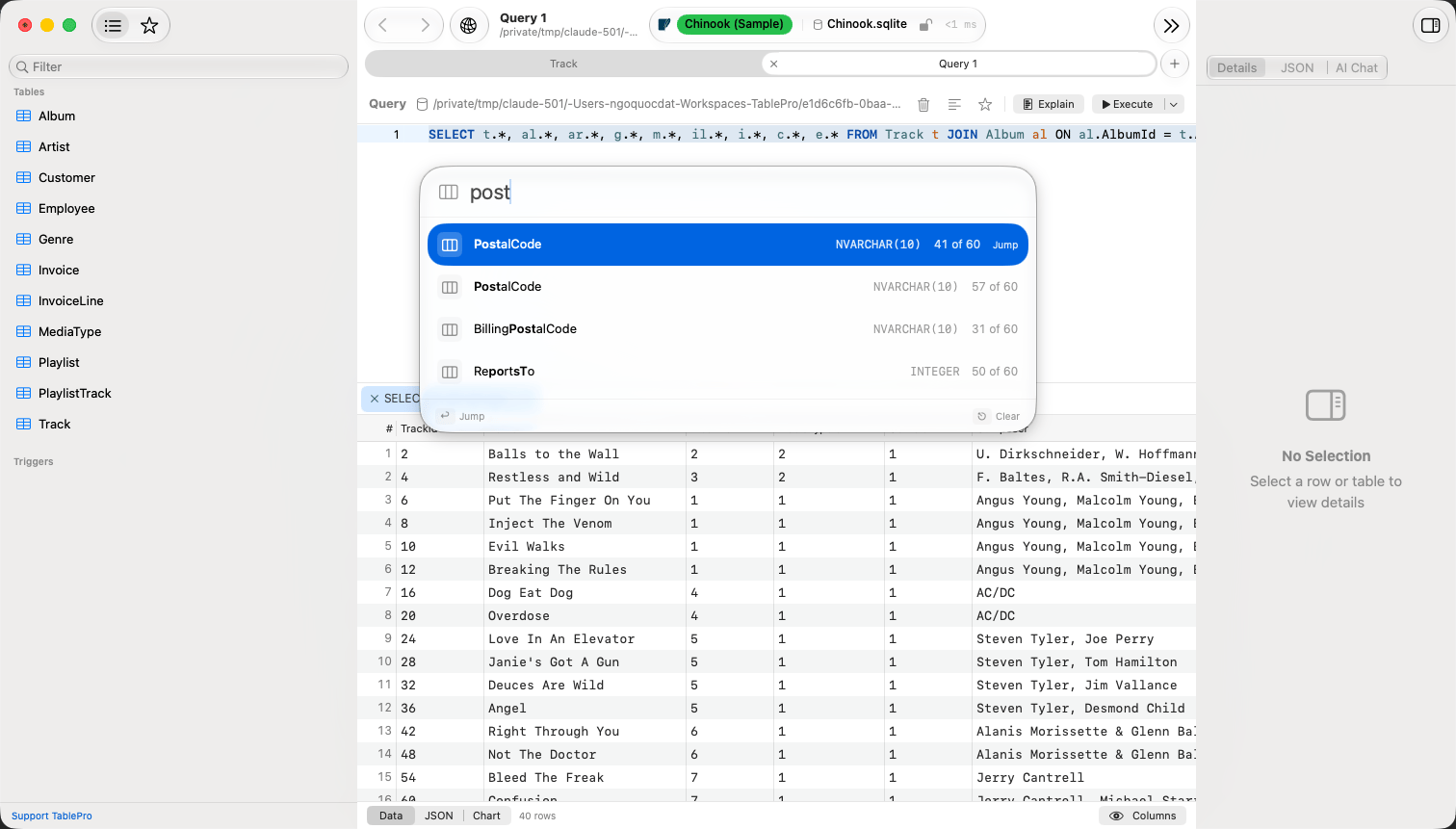
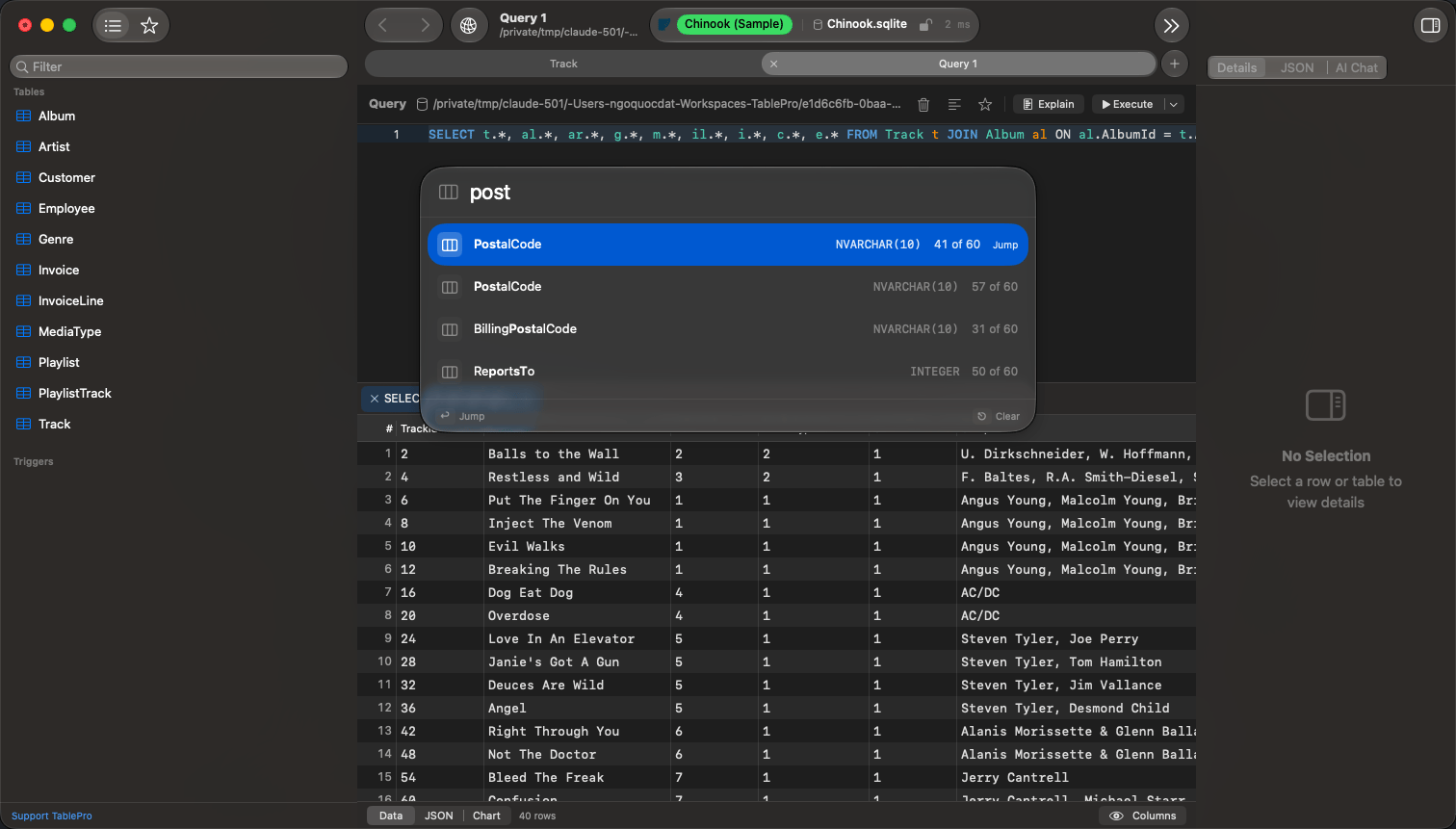
`Cmd+Shift+J`, or **Edit > Find > Jump to Column**, lists every column of the result with its type and its place in the grid. Type part of a name; matching is fuzzy, so `crat` finds `created_at`. `Return` scrolls the selected column into view and puts the cell cursor in it, on the selected row. A hidden column is listed too, marked **Hidden**, and jumping to it shows it first. **Jump to Column** at the foot of the columns popover opens the same panel with the popover's search carried over.
A value filter lives as long as the result does: switching view mode or tab keeps it, replacing the result clears it. **Fetch All** keeps it and applies it to the rows it loads.
## Columns
Drag a border to resize a column, or double-click it to fit the content; **Size to Fit** and **Size All Columns to Fit** on the header menu do the same. A fitted column stops at half the visible grid width.
Hide columns from the columns button in the status bar or from the header menu. A hidden column is not fetched, so hiding a large one makes the table load faster; the primary key and the sorted column are fetched either way. On a schemaless store the popover lists every field the grid can draw, including ones that turn up only in later documents.
Widths, order, and hidden columns are remembered per table, scoped to the connection, database, and schema; **Reset Columns** in the popover puts them back. Right-click a header and choose **Display As** to read a column's stored values in a different form; [Cell and Row Viewers](/features/json-viewer) lists the formats.
### Jump to a column
`Cmd+Shift+J`, or **Edit > Find > Jump to Column**, lists every column of the result with its type and its place in the grid. Type part of a name; matching is fuzzy, so `crat` finds `created_at`. `Return` scrolls the selected column into view and puts the cell cursor in it, on the selected row. A hidden column is listed too, marked **Hidden**, and jumping to it shows it first. **Jump to Column** at the foot of the columns popover opens the same panel with the popover's search carried over.
 ## Foreign keys
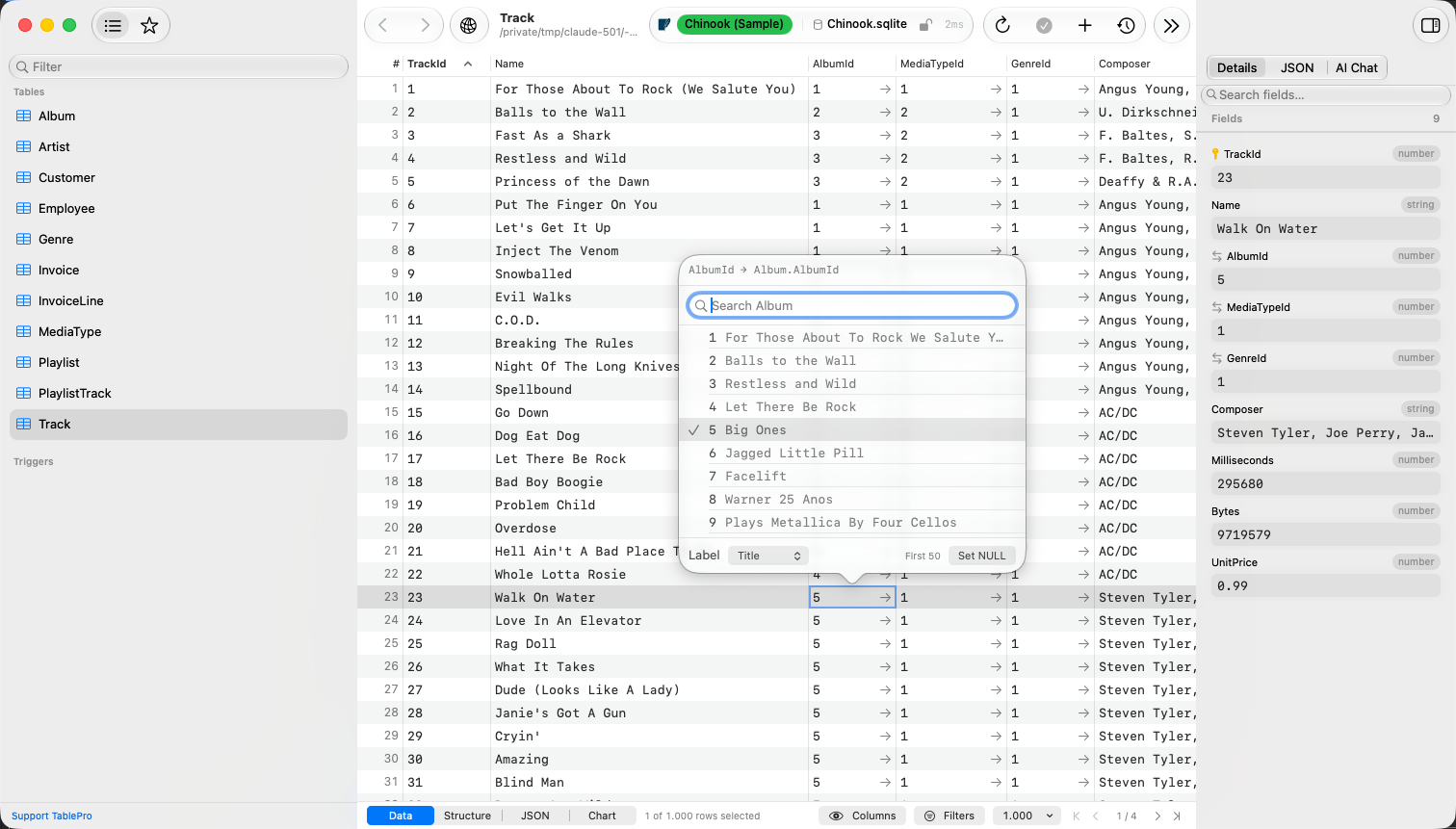
A foreign key cell carries an arrow on its right edge. Click it to open the referenced table filtered to the matching row, or right-click for **Preview Referenced Row**, which shows that row in a popover. `Cmd`-click always opens a new tab; otherwise the reference takes over the current tab unless that tab holds a query or unsaved edits.
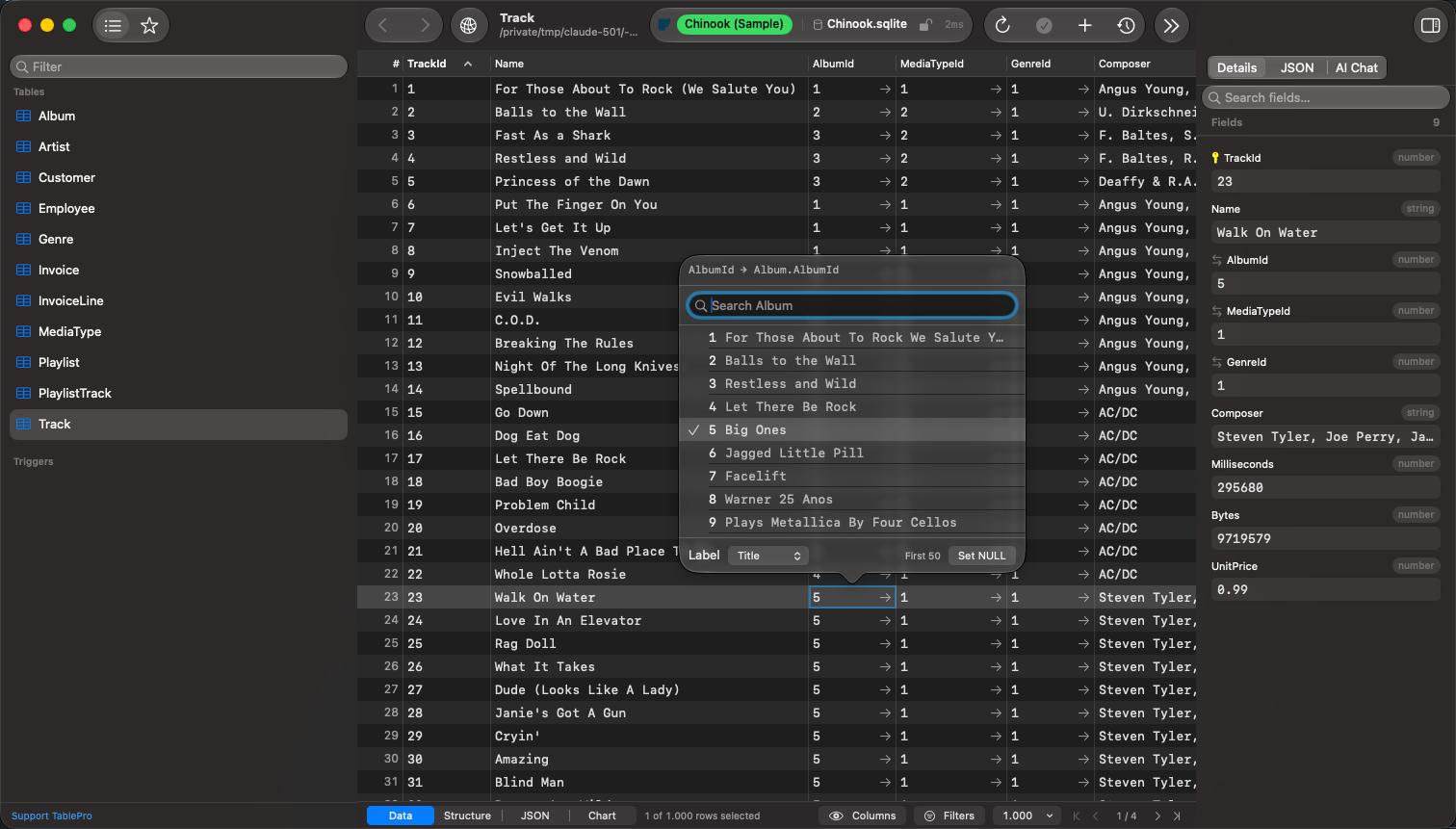
Double-click a foreign key cell, press `Return` on it, or open its right-click menu to pick the key rather than type it. The picker lists rows from the referenced table, each key with a label beside it, and narrows as you type. `Return` in the search field commits the text as typed, which covers a key the search has not turned up. **Set NULL** appears on a nullable column.
**Label** at the foot of the picker chooses the column that reads as the row's name. The choice is remembered for the referenced table, so every column pointing at it shows the same one. A search fetches the first 50 matches, which keeps the list quick on a large table.
A column of a foreign key that spans several columns keeps the text editor. The picker sets one column, and a key it offered might not pair with the values the row holds in the constraint's other columns. Type the key, or open the referenced table and read the pair off it.
## Foreign keys
A foreign key cell carries an arrow on its right edge. Click it to open the referenced table filtered to the matching row, or right-click for **Preview Referenced Row**, which shows that row in a popover. `Cmd`-click always opens a new tab; otherwise the reference takes over the current tab unless that tab holds a query or unsaved edits.
Double-click a foreign key cell, press `Return` on it, or open its right-click menu to pick the key rather than type it. The picker lists rows from the referenced table, each key with a label beside it, and narrows as you type. `Return` in the search field commits the text as typed, which covers a key the search has not turned up. **Set NULL** appears on a nullable column.
**Label** at the foot of the picker chooses the column that reads as the row's name. The choice is remembered for the referenced table, so every column pointing at it shows the same one. A search fetches the first 50 matches, which keeps the list quick on a large table.
A column of a foreign key that spans several columns keeps the text editor. The picker sets one column, and a key it offered might not pair with the values the row holds in the constraint's other columns. Type the key, or open the referenced table and read the pair off it.
 The inspector's **JSON** view follows a key without leaving the row: see [Row as JSON](/features/json-viewer#row-as-json).
Step back with the Back and Forward buttons at the leading edge of the toolbar, or **View > Back** (`Ctrl+Cmd+[`) and **View > Forward** (`Ctrl+Cmd+]`). Back restores the table you came from as you left it: same filters, sort, page, and selected row. Each tab keeps its own history, Back never closes a tab, and it is unavailable while a tab holds unsaved edits.
The inspector's **JSON** view follows a key without leaving the row: see [Row as JSON](/features/json-viewer#row-as-json).
Step back with the Back and Forward buttons at the leading edge of the toolbar, or **View > Back** (`Ctrl+Cmd+[`) and **View > Forward** (`Ctrl+Cmd+]`). Back restores the table you came from as you left it: same filters, sort, page, and selected row. Each tab keeps its own history, Back never closes a tab, and it is unavailable while a tab holds unsaved edits.
 ## Inspector
Press `Cmd+Option+I`, or click the button at the trailing end of the toolbar, to open the inspector beside the grid. Its header names the table and which row of how many is selected, and a **Fields** / **JSON** control switches between two renderings of that row. [Cell and Row Viewers](/features/json-viewer) covers both. Turn on **Auto-show inspector on row select** in [Settings > Data](/customization/data-settings) to open it whenever a row is picked, in a query result as well as a table.
Short values sit on one line, label leading and value trailing. Long text, JSON, PHP, binary and images take the full width. Long text and JSON carry a resize handle; PHP, binary and images draw at a fixed height. `Tab` and `Shift+Tab` move between fields; the menu at the trailing edge of each field carries **Set NULL**, **Set DEFAULT**, **Set EMPTY** and **SQL Functions**, with `Ctrl+Option+N` and `Ctrl+Option+D` as shortcuts for the first two. Search filters the list by column name or stored value, and the pencil button narrows it to fields already edited.
With no row selected and a table open, the inspector shows that table's size, row count, engine, collation and timestamps, as far as the database reports them.
## Inspector
Press `Cmd+Option+I`, or click the button at the trailing end of the toolbar, to open the inspector beside the grid. Its header names the table and which row of how many is selected, and a **Fields** / **JSON** control switches between two renderings of that row. [Cell and Row Viewers](/features/json-viewer) covers both. Turn on **Auto-show inspector on row select** in [Settings > Data](/customization/data-settings) to open it whenever a row is picked, in a query result as well as a table.
Short values sit on one line, label leading and value trailing. Long text, JSON, PHP, binary and images take the full width. Long text and JSON carry a resize handle; PHP, binary and images draw at a fixed height. `Tab` and `Shift+Tab` move between fields; the menu at the trailing edge of each field carries **Set NULL**, **Set DEFAULT**, **Set EMPTY** and **SQL Functions**, with `Ctrl+Option+N` and `Ctrl+Option+D` as shortcuts for the first two. Search filters the list by column name or stored value, and the pencil button narrows it to fields already edited.
With no row selected and a table open, the inspector shows that table's size, row count, engine, collation and timestamps, as far as the database reports them.

 ## Find in the loaded rows
`Cmd+F` opens the find bar above the grid. `Return` and `Cmd+G` step forward, `Cmd+Shift+G` back, `Escape` clears the term and then closes the bar. Matching ignores case and accents and runs over the text as displayed; spatial columns are skipped, and so is a binary column still showing hex. The counter says which rows were searched:
| What you see | What it means |
| ---------------------- | -------------------------------------------------- |
| `3 of 12` | Every row is loaded, so this is the whole table |
| `3 of 12 on this page` | More rows exist that were never fetched |
| `No matches` | Every row is loaded and none match |
| `Not on this page` | None of the loaded rows match, and more rows exist |
**Search All Rows** turns the term into a filter that runs at the database, covering the whole table. It replaces the tab's filters, so it appears only when none are applied; with a filter set, add the term to the filter bar instead.
## Pages and row counts
A table tab pages. The status bar offers 5, 10, 20, 100, 500 or 1,000 rows per page, **Custom…** up to 1,000,000, and **All rows…**, plus First, Previous, Next and Last; `Cmd+[` and `Cmd+]` step pages, and clicking the page indicator (`3 / 12`) jumps to a page number. The size a table opens with is a [data setting](/customization/data-settings).
A large table shows an estimated total prefixed with `~` instead of running a slow `COUNT(*)`. **Count Exactly** beside it runs the real count in the background, and `Cmd+.` cancels that. While a total is an estimate, **Last** and **All rows…** stay unavailable and **Next** works as long as the last page came back full.
A query tab does not page. It stops at the [row cap](/customization/data-settings) instead and offers **Fetch All** to load the rest, and a query carrying its own `LIMIT`, `FETCH FIRST`, or `TOP` is never capped. `Cmd+.` cancels a running query or a Fetch All.
## Copying
Click a cell to select it, drag or `Shift`-click for a range, and click a row number for a whole row. Copy acts on the whole selection.
| Shortcut | Copies |
| -------------- | --------------------------------------------- |
| `Cmd+C` | The focused cell, or the selected rows as TSV |
| `Cmd+Shift+C` | The selected rows as TSV |
| `Cmd+Option+C` | The same, with a header row |
| `Cmd+Option+J` | The selected rows as JSON |
Right-click and open **Copy as** for CSV, CSV with Headers, Markdown, and **IN Clause**, which writes `('a', 'b', 'c')` for a `WHERE col IN (…)`. **INSERT Statement(s)** and **UPDATE Statement(s)** appear when the result comes from a single table, and never on MongoDB or Redis. **Copy Column Values** on the header menu copies one column, one value per line.
Every copy follows the grid as shown: hidden columns are left out, columns keep their current order, and over a cell selection only those columns go out. UPDATE keys its `WHERE` clause on the primary key even when that cell is outside the selection.
## View modes
Switch between **Data**, **Structure**, **JSON**, and **Chart** with the switcher at the leading edge of the status bar, or from **View > Result View**. Query tabs have no Structure mode, the mode is remembered per tab, and [Cell and Row Viewers](/features/json-viewer) covers JSON mode.
### Chart mode
Needs a [Starter license](/features/licensing).
Pick a bar, line, area, or scatter chart, then a numeric Y column. X takes row numbers, another numeric column, a date or timestamp column, or a categorical column; an optional text, boolean, enum, or set column splits the result into series. Date and timestamp columns plot on a real time axis, whatever order the rows arrive in. Hover the plot for exact values.
A chart draws the loaded rows, up to 2,000 points, 20 series, and 50,000 inspected rows, and the toolbar says when it hit one: "Showing the first 2,000 points of 8,431 loaded rows". Null, binary, and unrepresentable axis values are skipped and counted. Grid selection, Find, hidden columns, and value filters do not narrow a chart, and the page controls and **Fetch All** stay in the status bar. Chart type and axes belong to the tab and follow the column names, so they survive a page turn, a sort, and a re-run.
## Editing and display
Double-click a cell to edit it. A long value stays on one line and scrolls sideways rather than wrapping into the column's width. Nothing reaches the database until you save, and [Change Tracking](/features/change-tracking) covers the type-specific editors, the row operations, and what a Save runs.
NULL renders as styled `NULL` text. That text, the date format, row height, row numbers, and alternate row backgrounds are [data settings](/customization/data-settings). Every shortcut the grid answers to, and how to rebind it, is in [Keyboard Shortcuts](/features/keyboard-shortcuts).
## Find in the loaded rows
`Cmd+F` opens the find bar above the grid. `Return` and `Cmd+G` step forward, `Cmd+Shift+G` back, `Escape` clears the term and then closes the bar. Matching ignores case and accents and runs over the text as displayed; spatial columns are skipped, and so is a binary column still showing hex. The counter says which rows were searched:
| What you see | What it means |
| ---------------------- | -------------------------------------------------- |
| `3 of 12` | Every row is loaded, so this is the whole table |
| `3 of 12 on this page` | More rows exist that were never fetched |
| `No matches` | Every row is loaded and none match |
| `Not on this page` | None of the loaded rows match, and more rows exist |
**Search All Rows** turns the term into a filter that runs at the database, covering the whole table. It replaces the tab's filters, so it appears only when none are applied; with a filter set, add the term to the filter bar instead.
## Pages and row counts
A table tab pages. The status bar offers 5, 10, 20, 100, 500 or 1,000 rows per page, **Custom…** up to 1,000,000, and **All rows…**, plus First, Previous, Next and Last; `Cmd+[` and `Cmd+]` step pages, and clicking the page indicator (`3 / 12`) jumps to a page number. The size a table opens with is a [data setting](/customization/data-settings).
A large table shows an estimated total prefixed with `~` instead of running a slow `COUNT(*)`. **Count Exactly** beside it runs the real count in the background, and `Cmd+.` cancels that. While a total is an estimate, **Last** and **All rows…** stay unavailable and **Next** works as long as the last page came back full.
A query tab does not page. It stops at the [row cap](/customization/data-settings) instead and offers **Fetch All** to load the rest, and a query carrying its own `LIMIT`, `FETCH FIRST`, or `TOP` is never capped. `Cmd+.` cancels a running query or a Fetch All.
## Copying
Click a cell to select it, drag or `Shift`-click for a range, and click a row number for a whole row. Copy acts on the whole selection.
| Shortcut | Copies |
| -------------- | --------------------------------------------- |
| `Cmd+C` | The focused cell, or the selected rows as TSV |
| `Cmd+Shift+C` | The selected rows as TSV |
| `Cmd+Option+C` | The same, with a header row |
| `Cmd+Option+J` | The selected rows as JSON |
Right-click and open **Copy as** for CSV, CSV with Headers, Markdown, and **IN Clause**, which writes `('a', 'b', 'c')` for a `WHERE col IN (…)`. **INSERT Statement(s)** and **UPDATE Statement(s)** appear when the result comes from a single table, and never on MongoDB or Redis. **Copy Column Values** on the header menu copies one column, one value per line.
Every copy follows the grid as shown: hidden columns are left out, columns keep their current order, and over a cell selection only those columns go out. UPDATE keys its `WHERE` clause on the primary key even when that cell is outside the selection.
## View modes
Switch between **Data**, **Structure**, **JSON**, and **Chart** with the switcher at the leading edge of the status bar, or from **View > Result View**. Query tabs have no Structure mode, the mode is remembered per tab, and [Cell and Row Viewers](/features/json-viewer) covers JSON mode.
### Chart mode
Needs a [Starter license](/features/licensing).
Pick a bar, line, area, or scatter chart, then a numeric Y column. X takes row numbers, another numeric column, a date or timestamp column, or a categorical column; an optional text, boolean, enum, or set column splits the result into series. Date and timestamp columns plot on a real time axis, whatever order the rows arrive in. Hover the plot for exact values.
A chart draws the loaded rows, up to 2,000 points, 20 series, and 50,000 inspected rows, and the toolbar says when it hit one: "Showing the first 2,000 points of 8,431 loaded rows". Null, binary, and unrepresentable axis values are skipped and counted. Grid selection, Find, hidden columns, and value filters do not narrow a chart, and the page controls and **Fetch All** stay in the status bar. Chart type and axes belong to the tab and follow the column names, so they survive a page turn, a sort, and a re-run.
## Editing and display
Double-click a cell to edit it. A long value stays on one line and scrolls sideways rather than wrapping into the column's width. Nothing reaches the database until you save, and [Change Tracking](/features/change-tracking) covers the type-specific editors, the row operations, and what a Save runs.
NULL renders as styled `NULL` text. That text, the date format, row height, row numbers, and alternate row backgrounds are [data settings](/customization/data-settings). Every shortcut the grid answers to, and how to rebind it, is in [Keyboard Shortcuts](/features/keyboard-shortcuts).